How to Turn Any Website Into an MCP Server (No API Key Needed)
Convert any website you're logged into into an MCP server that Claude Code, Claude Desktop, Codex or Cursor can use — no API key, no OAuth app, no scraping. A step-by-step guide with Weft.
Most of the tools I use every day have no public API. Some have one that's locked behind an enterprise plan, and some have an API that simply doesn't expose the thing I want — like my own Medium stats. But every one of them has a web app I'm already logged into, and that web app talks to a perfectly good JSON or GraphQL API behind the scenes.
So the obvious question for anyone using Claude Code or Cursor in 2026: can I turn that website into an MCP server, so my AI can use it the way I do? Yes. This guide shows how to convert any website into an MCP server with Weft, a free, open-source tool I built for exactly this — and explains what's happening under the hood so you can judge when it's the right approach.
- Time: about two minutes to install, then about a minute per site.
- You need: Chrome (or Edge, Brave, Arc), Node.js 20+, and an MCP client — Claude Code, Claude Desktop, Codex or Cursor.
- Cost: free and open source (MIT). Everything runs on your machine.
What "website to MCP server" actually means
An MCP server is a program that exposes tools to an AI client over the Model Context Protocol. (If MCP is new to you, start with MCP Architecture Explained.) Usually someone writes that server by hand against an official API — see Building MCPs in TypeScript for that path.
Converting a website into an MCP server skips the hand-written part. Instead of reading API docs, you let a tool watch the requests the site's own front end makes while you use it, then expose those requests as MCP tools. When your AI calls a tool, the request is made the same way the website makes it — with your existing login.
That's different from scraping (parsing HTML) and from browser automation (clicking through pages). You're calling the same API the page calls, so responses come back as clean JSON. I compare the three approaches in Website to MCP: Weft vs Playwright MCP vs scraping.
Step 1: Install the Weft app
Weft has two parts: a small desktop app (the local MCP server) and a Chrome extension (the button). Download the app from the latest release:
- macOS:
Weft-macOS.dmg— universal (Apple Silicon and Intel), signed and notarized, so it opens normally. - Windows: the
Weft_…_x64-setup.exeinstaller or the.msi. - Linux:
.AppImage,.debor.rpm.
Open Weft and leave it running. It only listens on 127.0.0.1 — nothing is reachable from outside your machine.
Step 2: Add the Chrome extension
The extension installs from a zip — about 30 seconds:
- Download weft-extension.zip and unzip it.
- Open
chrome://extensionsand switch on Developer mode (top right). - Click Load unpacked and select the unzipped
weft-extensionfolder. - Pin Weft from the puzzle-piece menu.
Open the popup — the footer should say connected to Weft app.
Step 3: Convert the website
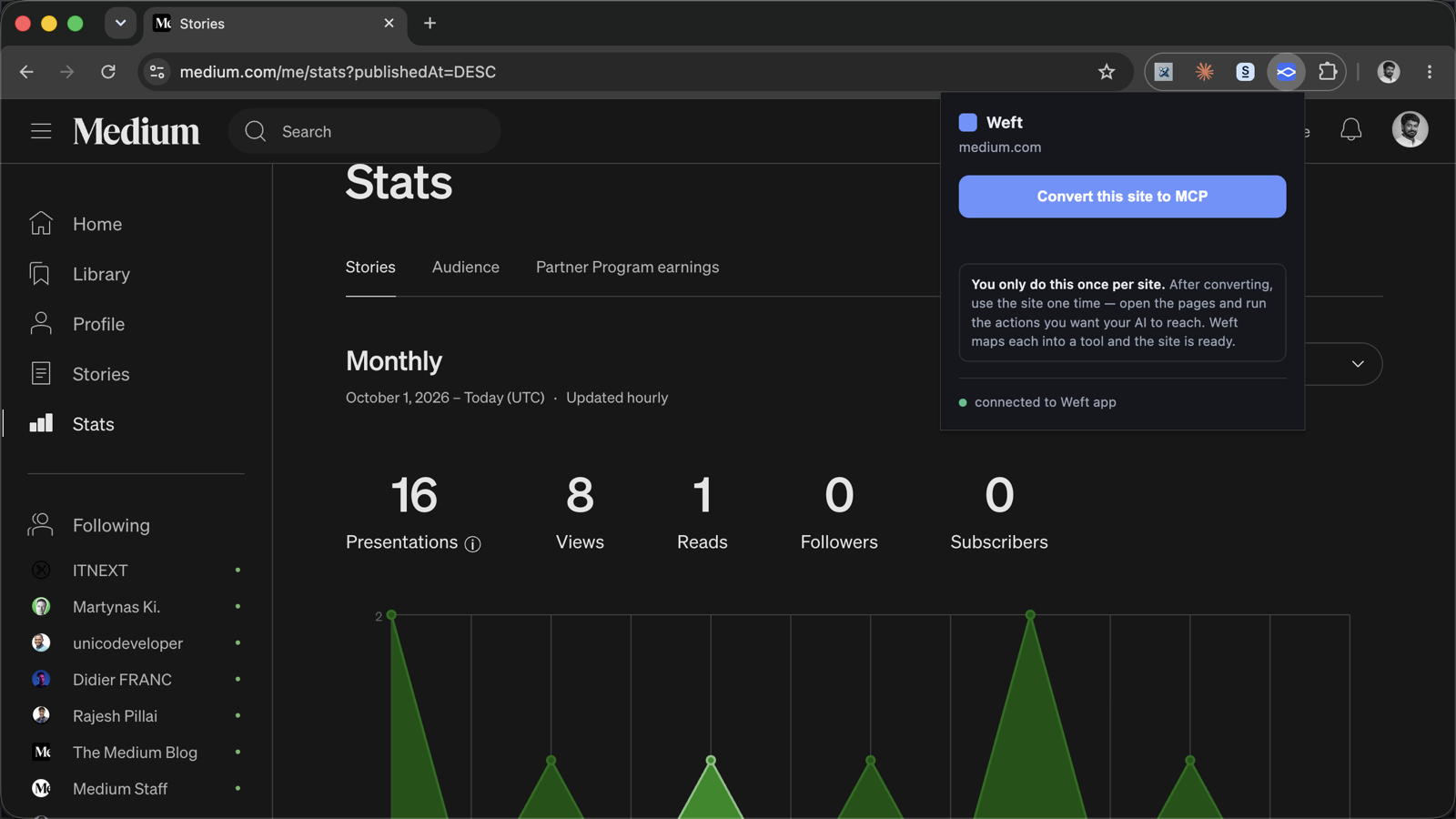
Open the site you want your AI to use, make sure you're logged in, click the Weft button and choose Convert this site to MCP. Chrome asks once for permission to access that site, then shows a "Weft started debugging this browser" bar. That bar is expected — it's how Weft sees the site's API calls. Leave it open while you capture.
Step 4: Use the site once
Weft maps what it sees. Reload the tab, then open the pages and run the actions you want your AI to reach. Each API call becomes an endpoint: numeric IDs and UUIDs in paths collapse into templates like /api/issues/{id}, and query parameters and status codes are recorded. The first endpoint flips the site from Capturing to Ready.
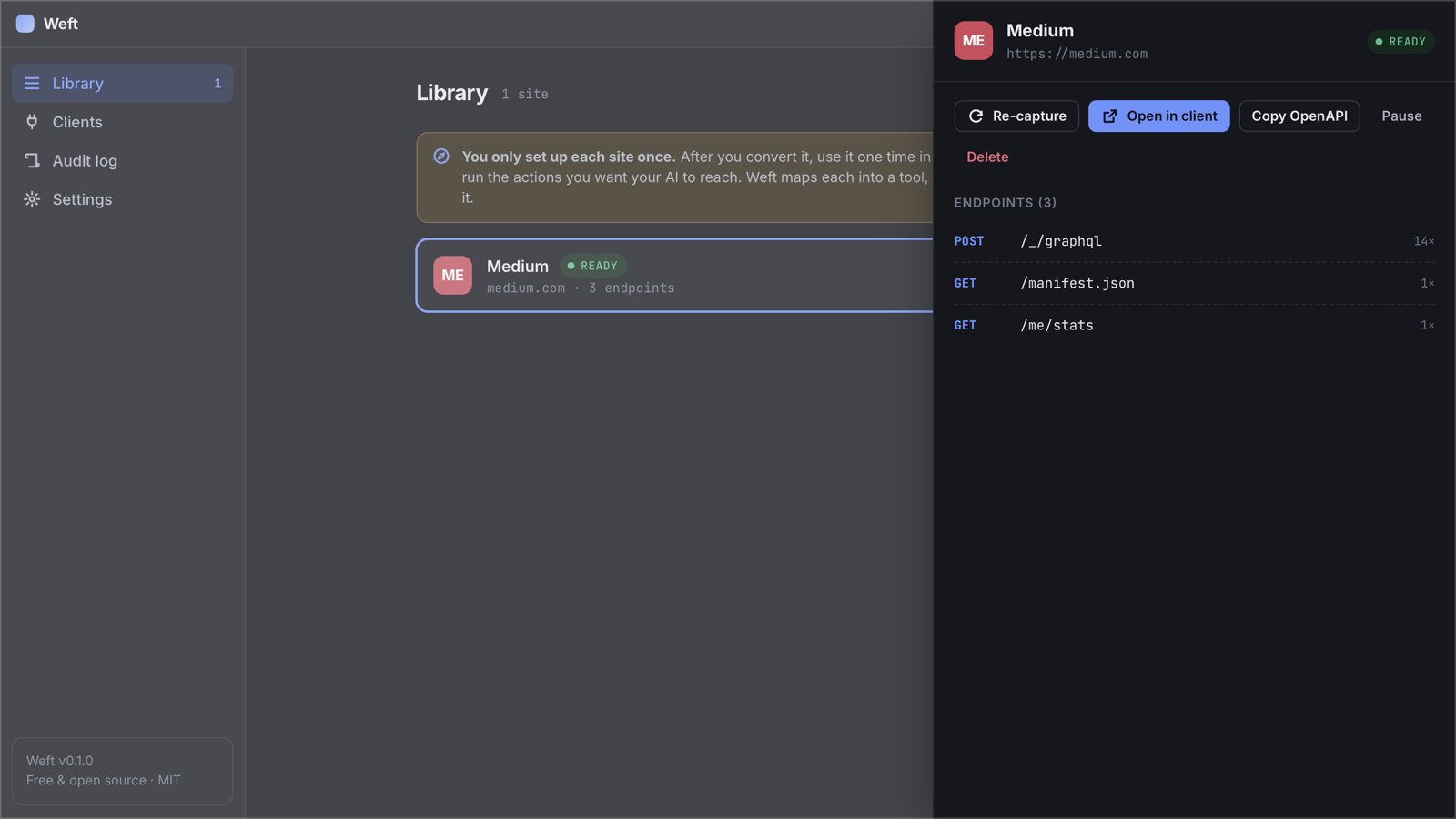
You only do this once per site. Weft saves its map locally and remembers it across restarts.
Step 5: Connect Claude Code, Claude Desktop, Codex or Cursor
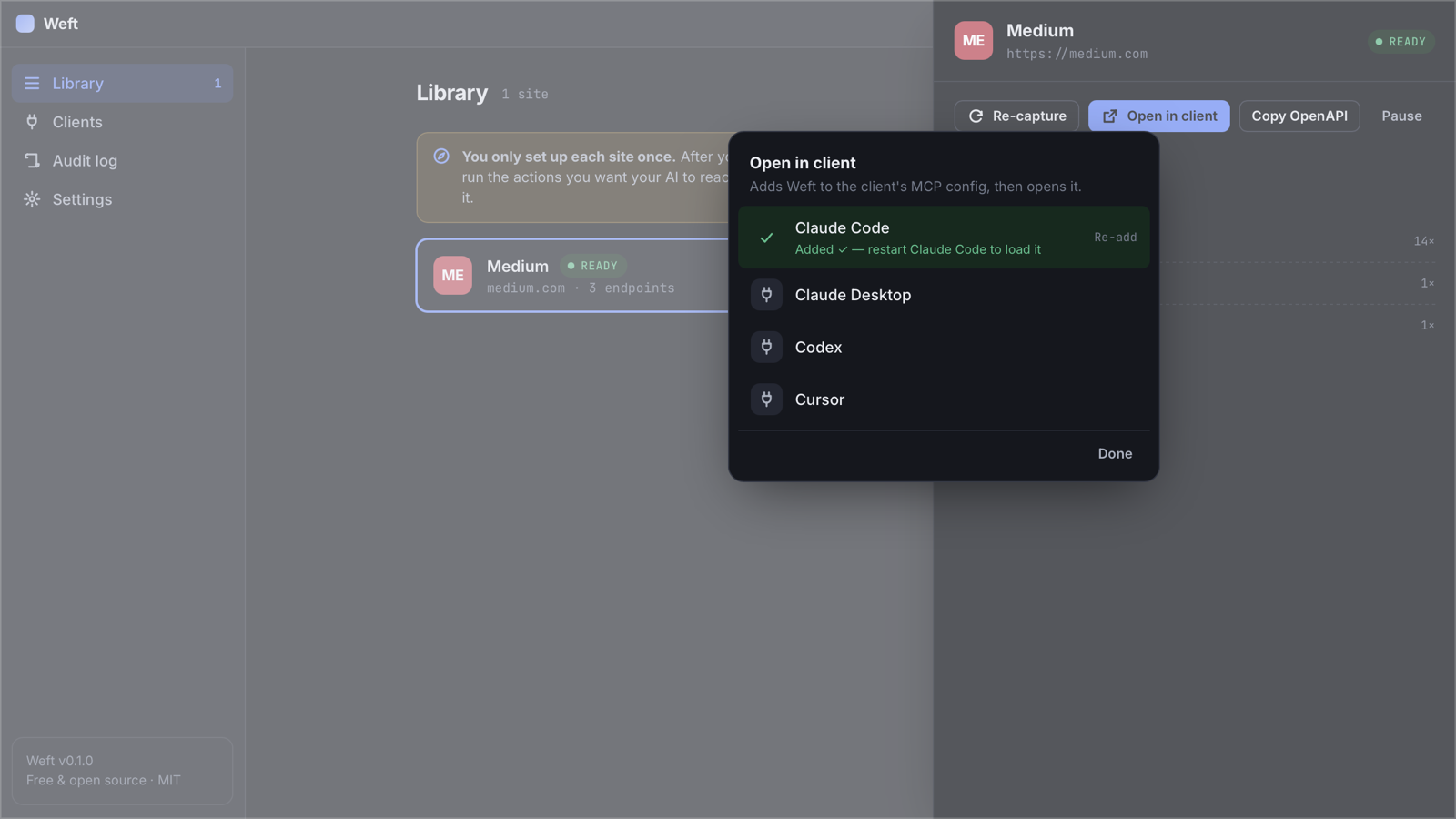
On a ready site, click Open in client and pick your client. Weft writes one weft entry into that client's MCP config — nothing else is touched — then restart the client. The full list of config file locations (and how to add it by hand) is in How to add an MCP server to Claude Code, Claude Desktop, Cursor and Codex.
Step 6: Ask your AI
Start a new session and ask in plain English. Your AI discovers what Weft knows with list_sites and list_endpoints, then calls the site with call_endpoint. Here's Claude Code answering "Using Weft, which of my Medium stories got the most views?" from my real account:
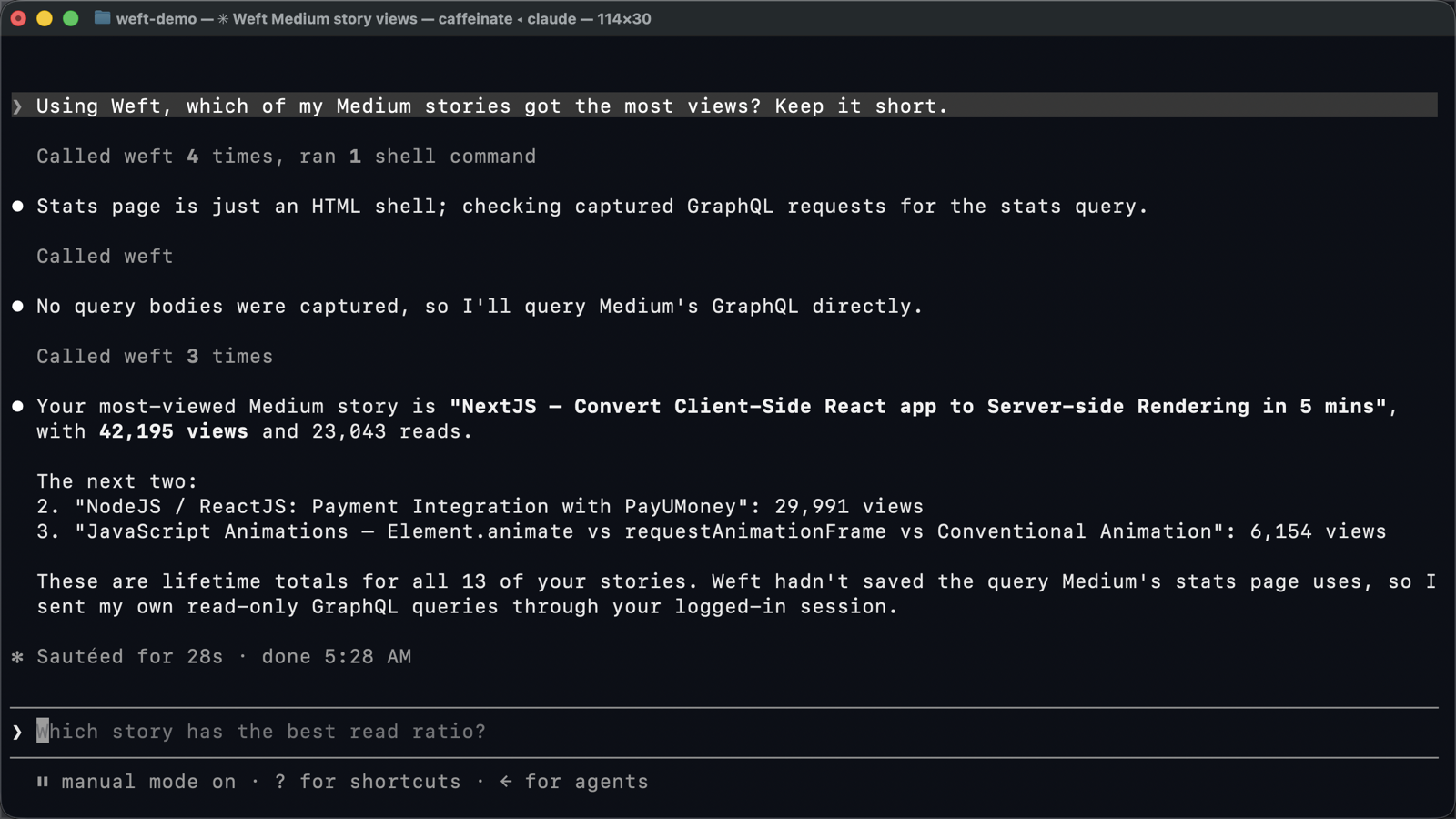
The full Medium walkthrough is in Medium MCP server: get your Medium stats in Claude, and there's a two-minute video demo.
The tools Weft exposes
list_sitesandstatus— which sites you've converted and whether each is Ready, Needs login, Outdated or Not possible.list_endpoints,get_endpoint,search_endpoints— methods, path templates, query params and status codes.get_openapi— an OpenAPI 3.1 spec synthesized only from observed traffic.get_auth_context— cookie names, storage keys and auth header names (never values).call_endpoint— make a request through your browser session. Anything other thanGETneedsconfirm: true.recent_requests— the live feed of captured calls.
Which websites can be converted?
Any site that loads its data from a JSON or GraphQL API in the browser — which is most modern web apps: content platforms like Medium, issue trackers, admin panels, analytics dashboards, internal tools. Sites that log in with cookies work out of the box; sites whose JavaScript sends an Authorization: Bearer token or a CSRF header work too (Weft adds those inside the browser — details in MCP server without an API key).
What won't work: sites that sign every request with a per-request secret, sites that only stream data over WebSockets, and anything behind DRM or CAPTCHA walls. Weft marks those Not possible instead of trying to defeat them.
Is it safe?
- Everything runs on
127.0.0.1. No account, no cloud, no telemetry. - Only sites you explicitly convert are captured.
- The extension forwards only each request's method, URL and status to the app — no headers, no bodies.
- Cookie and token values never leave the browser. Requests run inside your own tab.
- Writes are gated: non-
GETcalls are refused unless your AI passesconfirm: true, and Claude Code shows you the call before it runs.
Treat a converted site like an API key you've handed your AI: convert what you need, and pause or delete sites you're not using. And respect each site's terms — use it for your own data and workflows, not for scraping.
Frequently asked questions
Can I convert a website to an MCP server without an API key?
Yes. Weft uses the session you're already logged into in Chrome. It learns the site's own API from your browsing and replays requests inside your browser tab, so no API key or OAuth app is needed.
Does it work with Claude Code and Claude Desktop?
Yes — and with Codex, Cursor and any other MCP client. Weft adds itself to Claude Code, Claude Desktop, Codex and Cursor in one click; other clients can point at the bundled connector manually.
Is Weft free?
Yes. Weft is free and open source under the MIT license, with installers for macOS, Windows and Linux.
Does my AI see my password or cookies?
No. Your AI sees endpoint descriptions and JSON responses. Cookie and token values stay in Chrome; Weft only reports their names.